Setting up the Timer
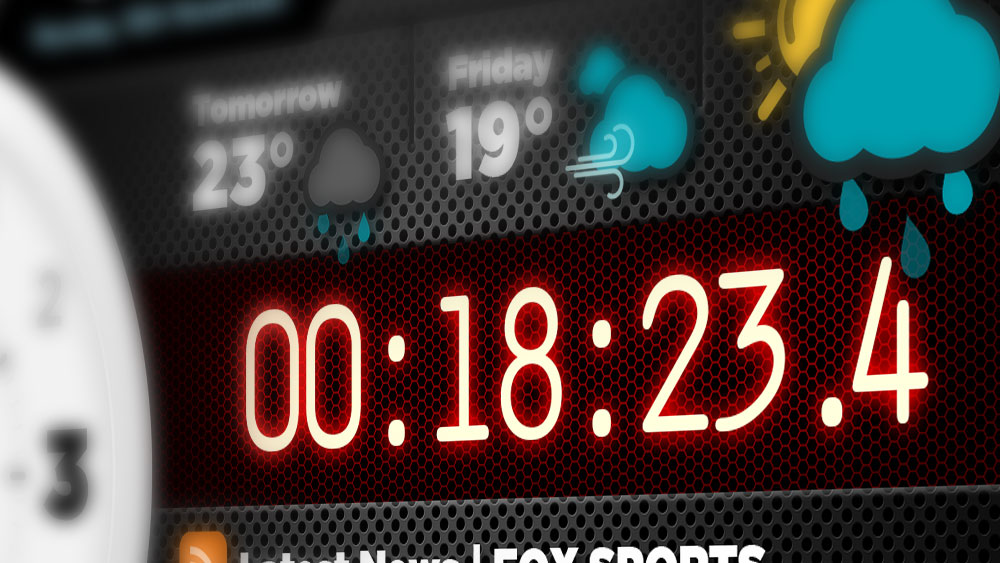
The timer is an easy visual way to keep track of how long you've been on-air or recording. This guide will show you the easiest way to set it up
Basic Operation (Count Up)
Every Screenabl license comes with the default "Count Up" timer. This is generally started when the recording begins and lets you easily see how long the break has been going for at a quick glance.
The timer will always start at 00:00:00 and counts up once it receives a Start event.
Recommended Setup
- Use a
Reset & Starttrigger event to ensure the timer resets to00:00:00and begins counting when triggered. - Use a
Stoptrigger event to stop the timer when needed.
For the best results when also using an "On-Air" type lamp
Best configuration to keep the timer in sync with the lamp:
- Set the timer's
Reset & Starttrigger to use the same event as your On-Air Lamp'sOntrigger. - Set The timer's
Stoptrigger to use the same event as your On-Air Lamp'sOfftrigger.
That way, when the On-Air Lamp turns on, the timer resets to 00:00:00 and then starts counting, and when the lamp turns off, the timer stops.
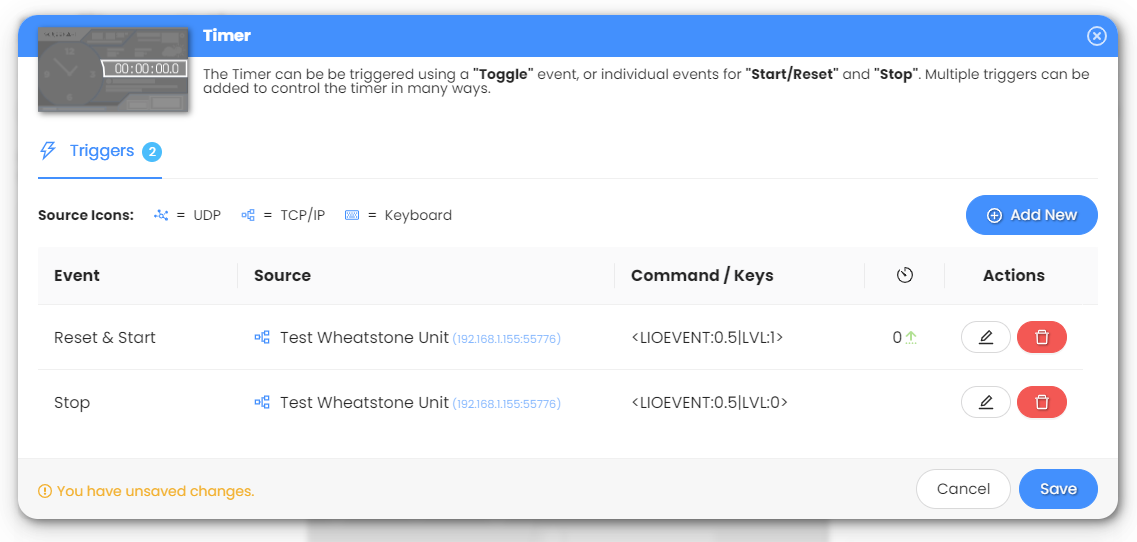
💡 TIP: If using keyboard triggers, match the same keys used for your On-Air Lamp for consistent operation.
Count Down Mode ULTIMATE
For ULTIMATE license holders, timers can also be set to Count Down mode.
In this mode, you can define a starting time (in seconds) and optionally make the timer flash when it reaches zero.
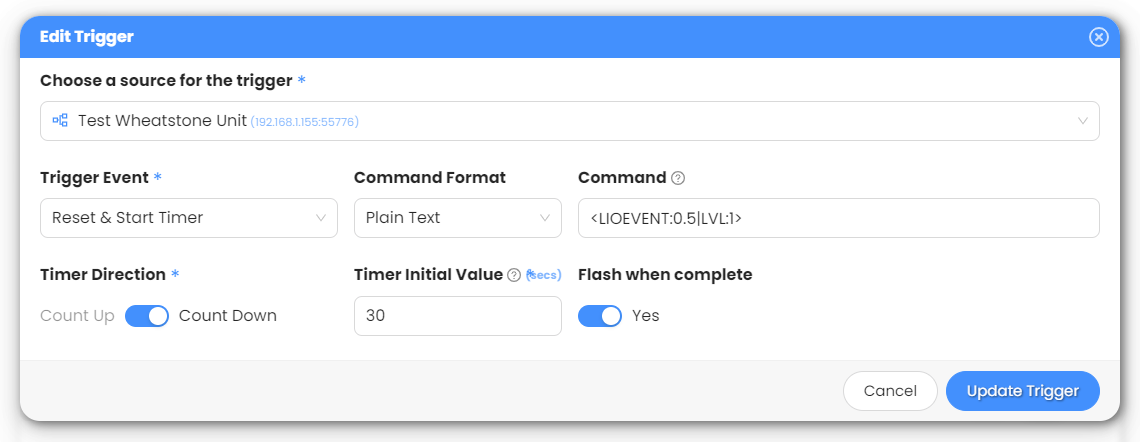
When adding a trigger which is a Reset event, simply set the Timer Direction to Count Down and then specify an Timer Initial Value (in seconds). You can also choose if you want the timer to Flash when it reaches zero:
After you have added a Count Down trigger, they will be visible in the list with their initial value shown:

Trigger Event Types
Below is a brief description on what each trigger event type does:
| Trigger Event | Description |
|---|---|
Start / Continue Timer | Starts or resumes the timer. If the timer was previously running and had been stopped, it will not reset the timer, just continue on from where it was. |
Stop Timer | Stops the timer immediately. Value will remain as it was when stopped, it will not reset the timer. |
Start / Stop | Toggles between running and stopped each time the event is received. The Start event will not reset the timer, just continue on from where it was. |
Reset Timer | Resets the timer back to its initial starting time (00:00:00 for Count Up).If the timer was already running, it will reset it's value and continue running from there. |
Reset & Start Timer | Resets the timer back to its initial starting time, then begins counting immediately. This is commonly the best way to Start your timer as it ensures it will reset when started. |
Reset & Start Timer / Stop | Toggles between Reset & Start Timer and Stop Timer with each event received.Ideal for keyboard use - Eg/ assigning the SPACE to reset+start/stop the timer easily. |
Mixing Modes ULTIMATE
A great feature that Screenabl timers have, is that they can have "mixed" modes. This means that you can set up triggers which can Start the timer at zero and then count up, as well as have another trigger which can Reset the counter to 30 seconds and start counting down.
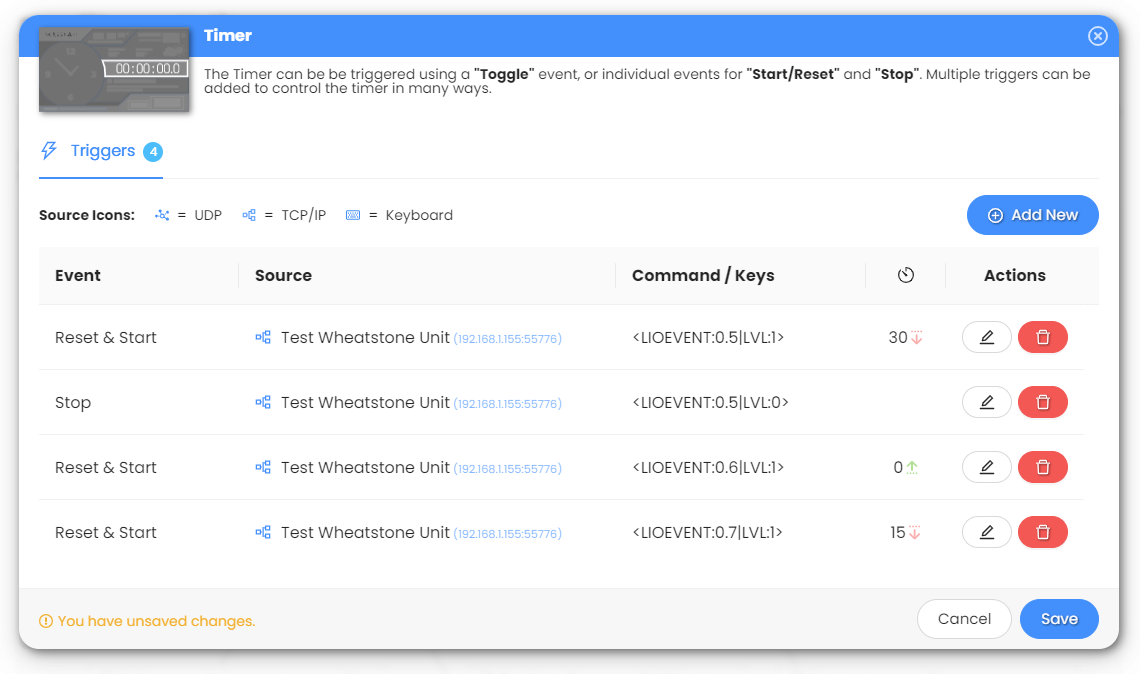
This is useful when you need the normal Count Up timer to work along side the "On-Air" lamp (to keep track of how long your break has been), but also have a Count Down timer setup when running a promotion where the user only has a certain time period to answer a question (or "beat the bomb" style promo).
Different buttons on the console can be configured to send a trigger event to set the timer to 30 seconds and start counting down, while another might be set to 15 seconds for the final round!
It adds an visual sense of urgency in the background of your social media videos!